
An APA 7 student title page includes the paper title, author names, affiliation, course number and name, instructor, assignment due date and page number. Center and double-space the main elements, bold the title and place the page number in the upper-right header. Do not add a running head unless your instructor requires it.
TL;DR
APA 7 student and professional title pages require different information.
A student title page normally has a page number but no running head or author note.
AnswerThis formats student title pages in the browser, not professional manuscript title pages.
Check DOI metadata and restore reference-list formatting after copying or conversion.
Last updated: October 19, 2026
What goes on an APA title page?
APA Style distinguishes a student assignment from a professional manuscript. Before formatting an APA cover page, check which version your instructor, institution or journal requires. A professionally presented student paper does not automatically need the professional title page.
The APA Style Student Title Page Guide provides the student rules used here. The free AnswerThis APA title page generator for student papers formats the student version without sign-up or a usage limit.
APA 7 student title page: each element in order
Start with the page number in the header, then arrange the title and identification details in the page body. APA Style places the title three or four lines below the top of the page. Center the main elements, double-space them and leave one double-spaced blank line between the title and author names.
Page number
What to enter: The first page number
Formatting check: Upper-right header, using automatic page numbering in your editor
Paper title
What to enter: The actual title of your paper
Formatting check: Bold, centered and in title case
Author names
What to enter: The people who wrote the paper
Formatting check: Centered, in regular type, below the blank line after the title
Affiliation
What to enter: Department or division, followed by institution
Formatting check: Centered, on its own line
Course
What to enter: Course number and name
Formatting check: Match the course materials
Instructor
What to enter: Instructor’s preferred name and designation
Formatting check: Match the assignment or course materials
Due date
What to enter: Assignment due date
Formatting check: Use the country-appropriate date format and spell out the month
These requirements come from APA Style’s student title page guide. Do not insert an extra blank line between every identification element. The blank line after the title is intentional, while the rest of the information follows normal double spacing.
Annotated student title page example
The following details are fictional formatting examples, not a real assignment or institutional affiliation. The sequence shows the fields, while the actual document needs the alignment, header and spacing described above.
Study Habits and Academic Confidence
Alex Morgan
Department of Psychology, Example University
PSY 101: Introduction to Psychology
Dr. Taylor Lee
October 19, 2026
The bold first line is the paper title. The next line identifies the author, followed by the affiliation, course, instructor and due date. Put the page number in the document header rather than adding it to this centered text block.
Title case means capitalizing the first word, major words and the first word of a subtitle. APA’s student guide also explains how to handle short words and hyphenated terms. Do not apply sentence case from a reference entry to the title of your own paper.
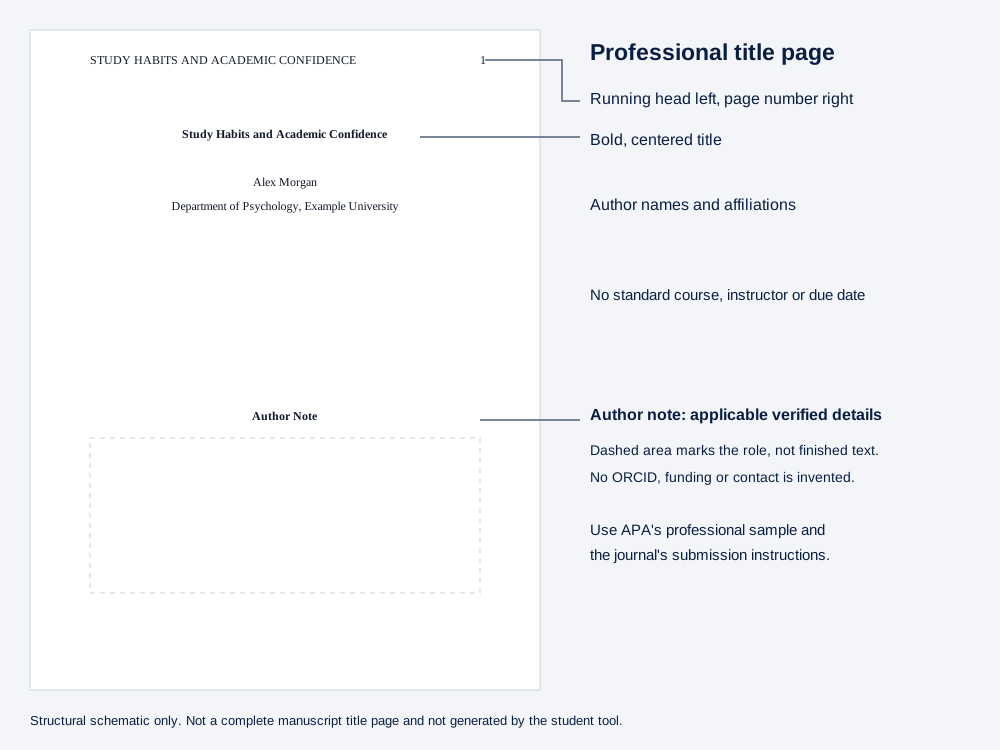
APA 7 professional title page: author note and running head
A professional title page includes the title, author names, affiliations, author note, running head and page number. It normally replaces student course information rather than adding professional elements to a student assignment. Follow the journal’s submission instructions where they specify a different arrangement or require information separately.
APA Style’s annotated professional paper shows these elements in context. The running head sits in the left side of the page header, opposite the page number. The author note belongs in the title-page body and contains the applicable author information and disclosures, not a course name or assignment due date.
Annotated professional title page example
For the same fictional paper, a professional layout would use STUDY HABITS AND ACADEMIC CONFIDENCE as the running head and place the page number at the right. The page body would contain the bold title Study Habits and Academic Confidence, followed by Alex Morgan and the affiliation Department of Psychology, Example University. An Author Note section would then provide only the applicable, verified author information required for that manuscript.
This example illustrates placement and roles, not completed publication disclosures. Do not invent an ORCID identifier, funding statement, conflict-of-interest declaration or correspondence address to fill the space. For the student version, AnswerThis’s APA title page generator builds it for you in seconds.
Student vs professional title page
The practical difference is the information needed by the reader. A course assignment identifies the course and instructor, while a manuscript needs professional author and publication information. APA Style’s title page guidance and annotated professional example support the distinctions below.
Paper title
Student paper: Required, bold and centered
Professional manuscript: Required, bold and centered
Author names and affiliations
Student paper: Included
Professional manuscript: Included
Course and instructor
Student paper: Included
Professional manuscript: Not standard professional title-page elements
Assignment due date
Student paper: Included
Professional manuscript: Not a standard professional title-page element
Page number
Student paper: Included
Professional manuscript: Included
Running head
Student paper: Only if instructor or institution requests it
Professional manuscript: Included under APA professional format
Author note
Student paper: Not normally included
Professional manuscript: Included for professional journal manuscripts
AnswerThis title page generator
Student paper: Supports this format
Professional manuscript: Use the professional layout shown above
Do not choose the professional version just because it looks more detailed. Use the format required for the document you are submitting. If an instructor requests professional formatting, follow that instruction rather than relying on a student-only template.
Running heads, page numbers and fonts: what APA 7 requires of student papers
APA Style’s Student Paper Setup Guide specifies one-inch margins, double spacing and page numbers in the upper-right corner. The title page is page one. Student papers do not require a running head unless the instructor or institution asks for one.
When a running head is requested, APA’s student title page guide describes an abbreviated title in capital letters, no longer than 50 characters including spaces and punctuation. Place it flush left in the header, across from the right-aligned page number. Do not mistake the paper title in the body for the running head.
APA 7 permits several legible fonts, not only Times New Roman. The student setup guide lists options including 11-point Arial, 11-point Calibri, 11-point Georgia and 12-point Times New Roman. Use the same font consistently and follow any specific font instruction from your course.
The AnswerThis preview uses 12-point Times New Roman, double spacing and one-inch margins. That is one formatting option, not a claim that APA requires every student to use that font. Inspect the final exported or printed page rather than assuming a browser preview controls every print setting.
Common title page mistakes
Most errors come from mixing formats or using line breaks to imitate layout. Check the final document against the APA student title page and setup guides, then against your assignment instructions. Pay particular attention to these points:
Title not bold: bold the paper title, not every line of identifying information.
Wrong capitalization: use title case for the paper title, not all capitals or reference-entry sentence case.
Extra blank lines: keep the required blank line after the title, but do not add one between every subsequent element.
Unrequested running head: student assignments normally need only the page number in the header.
Page number typed into the body: use the editor’s page-numbering function for a continuing document.
Incorrect course details: copy the instructor’s preferred wording and the actual assignment due date.
Professional details invented to complete a template: include only true, applicable manuscript information.
A title-page tool does not confirm the course requirements or correct a mistaken name. It formats the details you provide. Check spelling and document layout before submission.
Make a student title page in the browser
AnswerThis has released a student title page formatter alongside separate APA citation and reference-conversion tools. These serve different tasks: one formats the opening page, one prepares references and in-text citations from source details, and one converts batches of identifiers into reference-list entries. None of these tools writes the paper’s content.
To make the student title page, enter Paper title, Author name(s) and Affiliation. Add Course number and name, Instructor name and Due date, then inspect the Title page preview. Use Copy text, Download HTML or Print or save PDF to take the result into your document workflow.
Formatting happens in your browser, and nothing from the title page form goes to an AI service. The form is not saved to an account. Download or print it before leaving, and check paper size, margins and scaling when producing the final PDF.
Copying plain text does not preserve every visual setting. If you paste into a word processor, recheck the title’s bold formatting, centered alignment, spacing and header. Add automatic page numbering to the complete document so the numbering continues beyond the title page.

Choose the right APA tool for the next task
The AnswerThis APA 7 citation generator creates author-date citations from source metadata or manually entered details across 12 source types. DOI lookups use Crossref, with DataCite when Crossref has no record, while PMIDs use NCBI PubMed and ISBNs use Open Library. Website details come from the page’s own metadata, and no AI generates citation details.
The first 3 sources are free per browser, shared across citation pages. Parenthetical in-text citations are shown, and references can be copied or exported as BibTeX or RIS. Metadata can still be incomplete, so compare the returned title, author, date and publication details with the original source.
For a list of publication identifiers, use the AnswerThis DOI to APA converter for reference lists. Enter one identifier or complete reference per line, with up to 100 entries per batch. It accepts DOIs, doi.org URLs, PMIDs, ISBNs and arXiv IDs and uses metadata lookup rather than AI-generated reference details.
The first 10 references are free per browser, shared across all six converter pages. A 100-entry batch limit is not a promise of 100 free conversions. The converter produces reference-list entries, not in-text citations, and users must check italics, hanging indents and ordering in their editor.

Student title page generator
Suitable task: Format an APA 7 student cover page
Limit or boundary: Free without sign-up or a usage limit, but not for professional manuscripts
APA citation generator
Suitable task: Inspect and edit a source reference with its parenthetical citation
Limit or boundary: First 3 sources free per browser, shared across citation pages
DOI to APA converter
Suitable task: Convert identifier batches into reference-list entries
Limit or boundary: First 10 references free per browser across six converter pages, no in-text citations
Write DOIs in APA 7 format
APA Style’s DOI and URL guidance says to present a DOI as a hyperlink beginning with https://doi.org/ followed by the actual identifier. Do not add a “DOI:” label, “Retrieved from” or a final period. Include the DOI when the work has one, rather than listing both its DOI and a separate URL.
A DOI identifies a publication, not the strength of its findings or its support for a particular claim. Check that the converted reference names the intended work and that the source actually supports the statement you cite it for. Keep unsuccessful lookups visible so a partially converted batch does not silently omit sources.
Format the APA reference page
APA Style’s Creating an APA Style Reference List Guide directs you to begin the reference list on a new page. Center and bold the label References, double-space within and between entries, and order entries alphabetically, usually by the first author’s surname. Do not add extra blank lines between references.
Apply a hanging indent with your editor’s paragraph settings: the first line stays at the left margin, and subsequent lines are indented half an inch. Plain-text conversion output does not automatically supply that document formatting. Review the complete list after combining converted entries with other references.
FAQs
What if my assignment template differs from the APA example?
Follow your instructor’s or institution’s assignment directions. If the template and rubric conflict, ask which one governs before changing the layout or adding professional manuscript elements.
Why does my saved PDF look different from the title page preview?
Check the print dialog’s paper size, scaling and margins, then reopen the saved PDF to inspect the result. If you copied text into an editor instead, check the editor’s formatting separately rather than expecting the preview’s layout to carry over.
What should I do if a DOI lookup returns the wrong paper?
Do not keep the reference just because it looks complete. Compare the identifier with the original publication, verify the returned record and correct the source details before citing it. Leave unresolved entries out of the finished list until you have checked them.
Can I combine converted references with entries I already formatted?
Yes, but review the combined list as one document. Check for duplicate entries, consistent formatting and alphabetical order, then reconcile the list with the works actually cited in your paper.
Which AnswerThis output should I choose if I need to edit my title page later?
Use Copy text to move the details into your editor, or Download HTML to retain an editable page file. Use Print or save PDF for a fixed-layout copy to inspect or submit. Keep a local copy because the title page form is not saved to an account.
One last thing: Check the document you will submit, not just the tool preview. The title page, continuing page numbers and reference list must remain consistent after copying, exporting and combining files.