


Discover Research Trends, Citations Maps and Search Papers With AnswerThis' Canvas
Watch this quick video to get a great understanding in just 5 minutes
Bibliometric Analysis
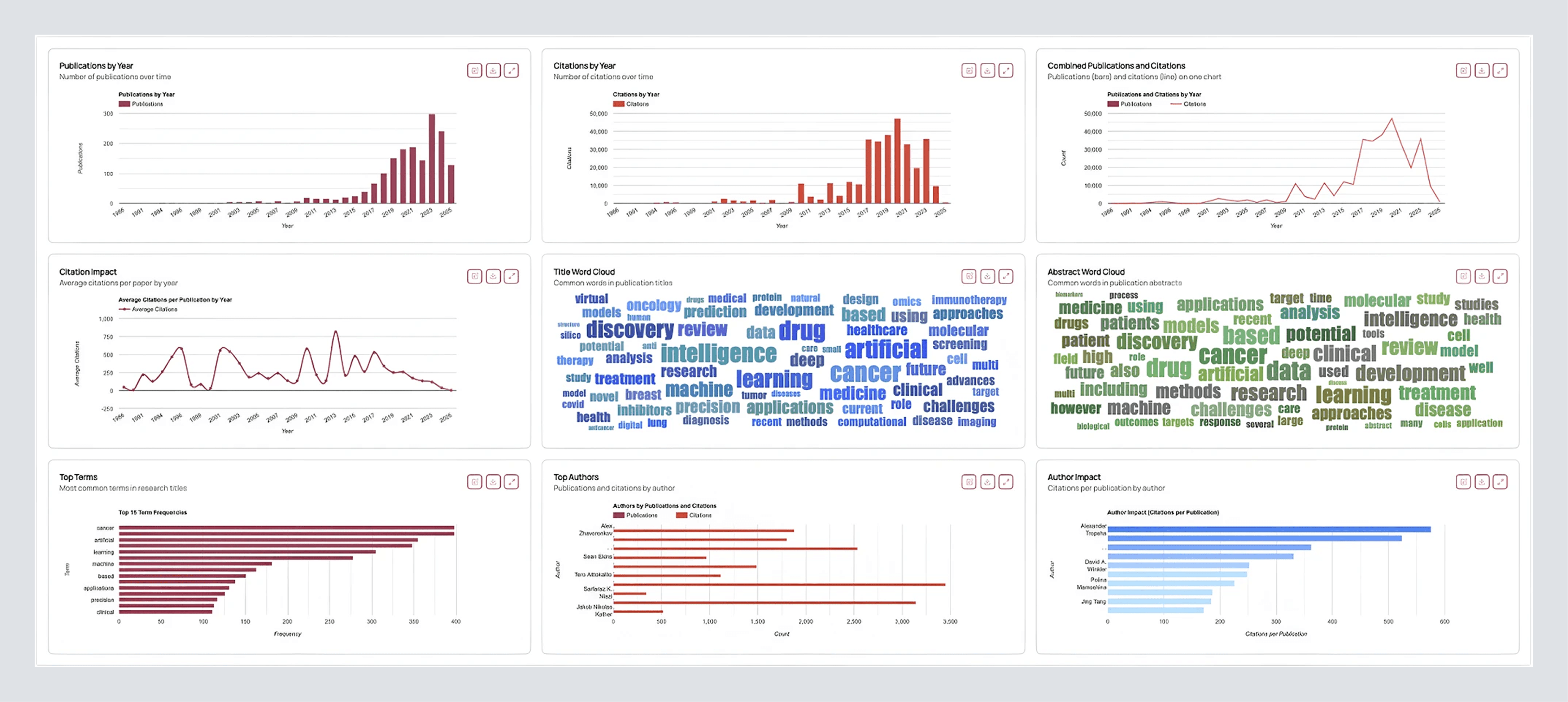
Open this to see the shape of the field you’ve curated, or all the papers that came with your comprehensive AnswerThis result. After selecting your papers, clicking Next Step, and choosing Bibliometric Analysis, here’s what you’ll find:
Publication by Year: Shows whether research output is accelerating or plateauing. It’s a great way to identify trends or locate seed papers in your field.
Citation Trends: Indicates whether recent work is gaining traction or if influence is anchored in older studies.
Combined Trend: Similar to the previous two metrics, but combines output × impact, a handy sanity check.
Citation Impact: Want to find seed papers? This helps you spot the years when papers are cited the most. Use the Search Papers tool with filters to locate these high-impact works.
Keyword Usage: Displays the actual language used across your set, helping surface dominant topics, tasks, or datasets.
Top Authors and Author Impact: Highlights recurring authors and their influence in the field.
Search New Papers
Run a targeted expansion without leaving your canvas. For example, if your bibliometric analysis shows that average citations per publication were highest in 2002, you might filter to find those papers.
Simply select Next Step, then click Search Papers. Enter a keyword or prompt as you would in the regular AnswerThis AI bar. Then, select More Filters. Here, you can filter papers by minimum citation count, database source (library, web, or patents), or journal quality (with Q1 being the highest tier but containing fewer papers). You can also filter by publication date.
From there, you’ll see a table where you can use various tools to extract as much useful information as possible. Click here to quickly learn how to do that.
Citation Map
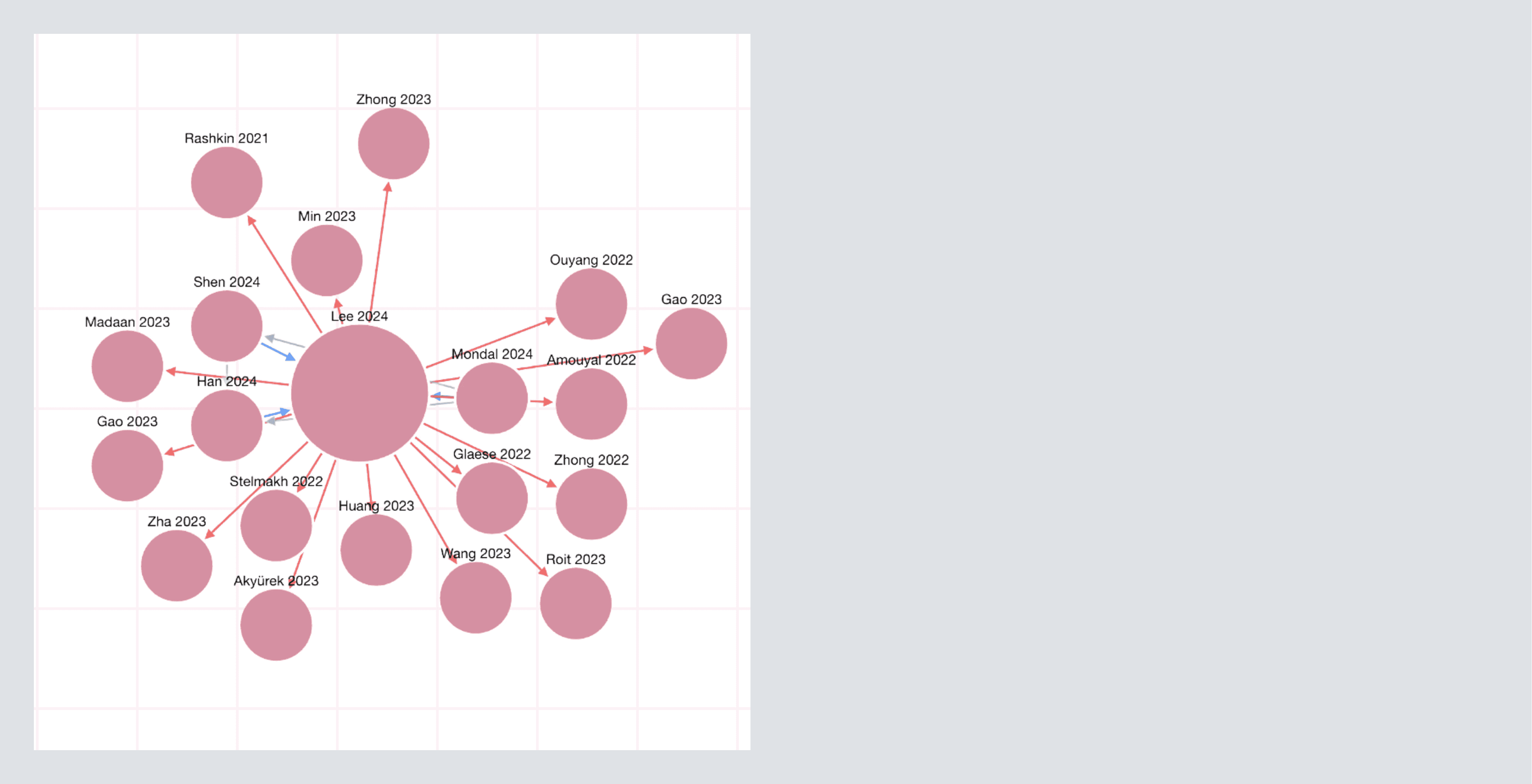
When you want to see the research around a specific paper rather than just the paper itself, open Next Step → Citation Map.
You’ll see a search box for a DOI or exact title. Either find the DOI of a desired paper and paste it, or search the papers title, then click Set as Origin on your paper. AnswerThis will build a directed map around that paper.
Just under the citation map, you will also have a table containing all the included sources connected to the paper you set as a source.
In the citation map itself, you'll find a central node (your origin paper), incoming and outgoing arrows showing who cites whom, and a metric button on the right side just above the table of papers. Click this to rearrange the papers included in your citation map to sort them by:
Most Cited (panel): these are the anchor papers in the cluster. Scroll down to the Table under the graph, add the desired, most cited papers to your library, or send them to your working table.
Most Connected: these are your bridge papers. They sit between subfields and are perfect for related work paragraphs where you need to explain how two lines of work meet.
Top Contributing Authors: this is your following list. Use Search New Papers on these names to pull their recent output into a fresh table without leaving your canvas.
Assistant Tip: If your map looks thin, your origin may be too niche or too new. Switch to a foundational paper you trust, set it as the new origin, and rebuild. You’ll immediately see the canon.
Follow-Up Questions (go deeper without losing your place)
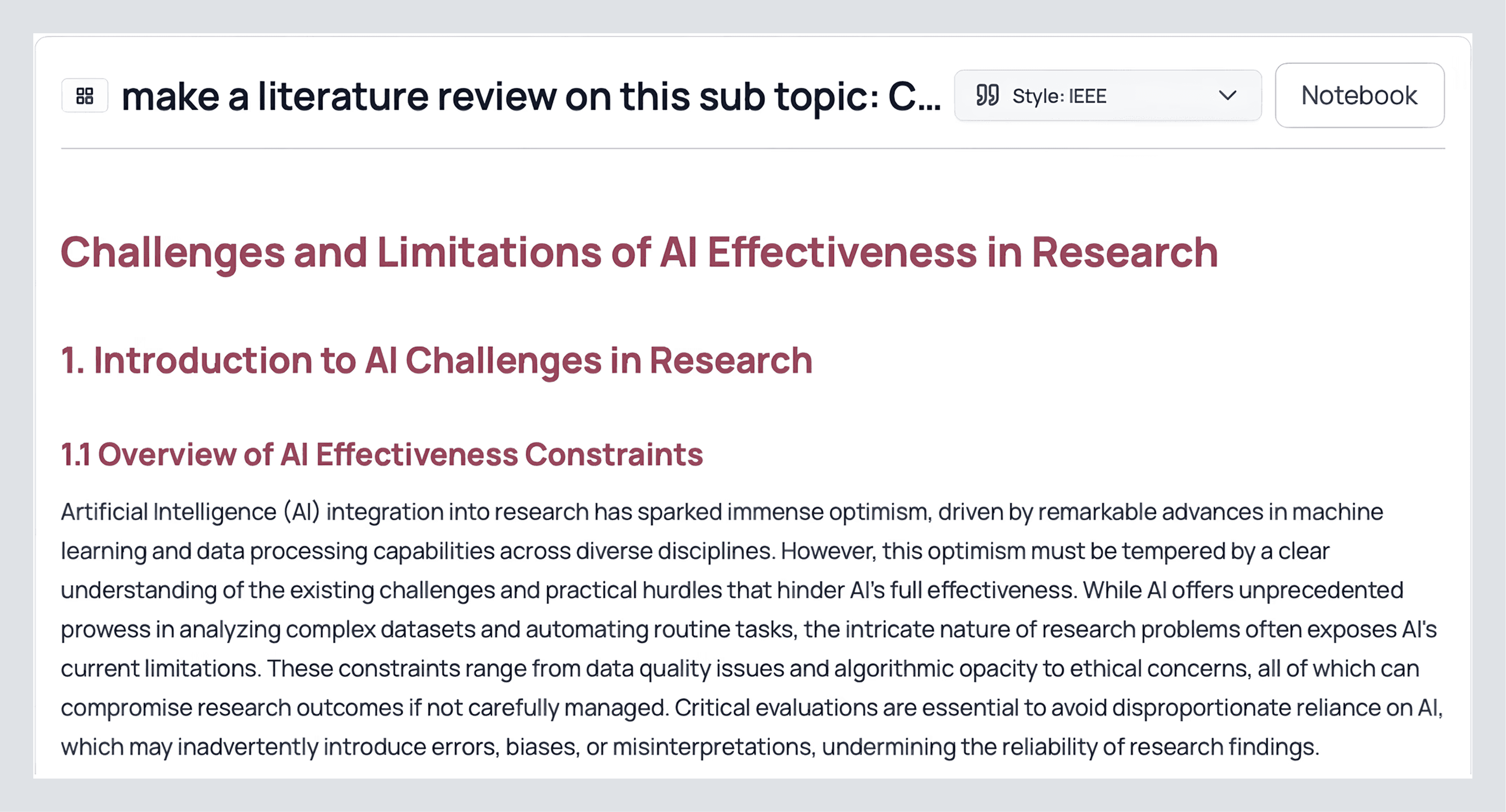
When a subsection deserves its own literature review or you have a research question based on something you saw, simply click and write a prompt in the box below.

Paste the subheading straight from your review or write a question, you can find research gaps, write proposals, do anything! If you want to control scope, open Filters (the button to the left of the send prompt button) and set your databases (Semantic Scholar and OpenAlex by default, PubMed if you’re clinical, arXiv for preprints), journal quality (Q1/Q2 when rigor matters), date window (narrow for recency, widen for foundational work), and whether to include your Library and web results. Then run it.
What you get back is a compact, fully cited synthesis on that topic. Click Sources under that follow-up, and you’ll see its own table, same structure as your main one. If two or three papers carry the argument, save them to your Library right away. If the writing is on target, press Send to Notebook, and it’ll slot into your draft with the citations already attached.
Here’s a follow up I made:
Now that we have got all the information we need for our research, let's go ahead and finish our project, click here to learn about the AnswerThis Notebook


