

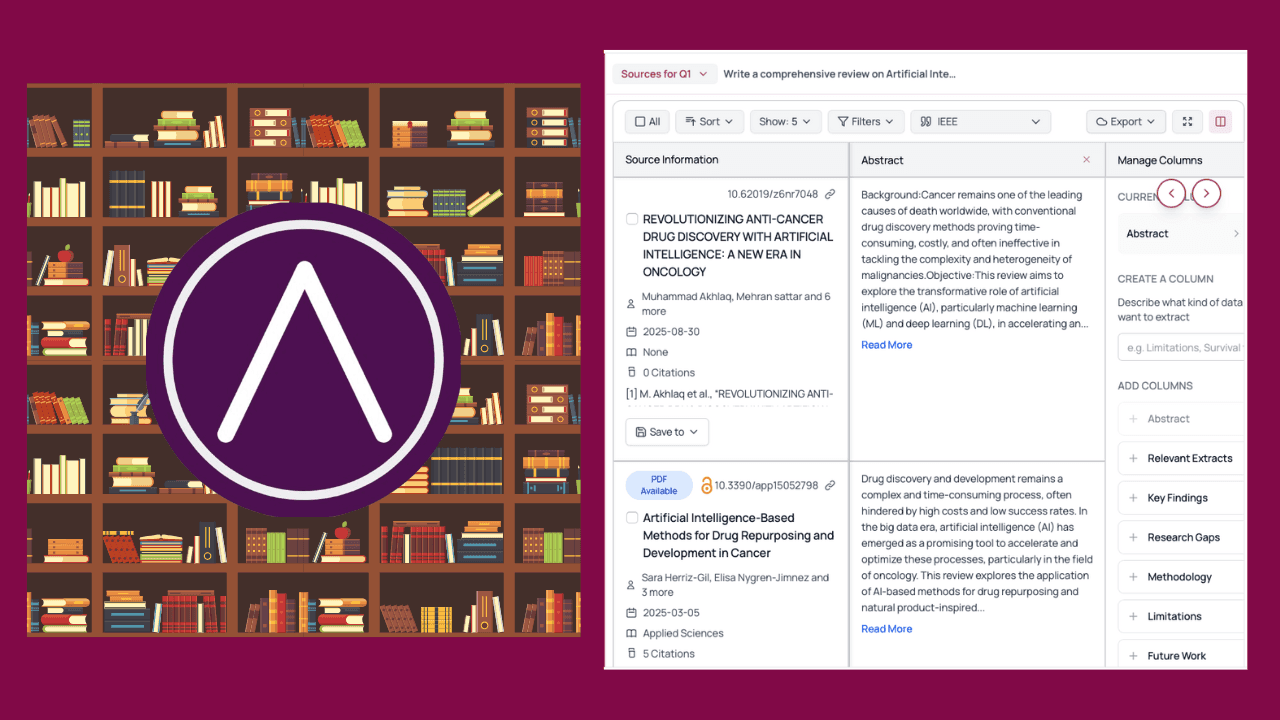
Library (organize once, reuse everywhere)
Organize and reuse your research, create project-specific libraries, extract key data, filter and sort like a pro, cite directly while drafting, run bibliometric analysis, and collaborate seamlessly with teammates sharing collections from your library. Researchers can use AnswerThis to consolidate evidence, clarify the key points, and shape a more coherent response. The rest of the guide helps you use this starting point in a disciplined, practical way.
TL;DR
This guide explains AnswerThis Library: Organize and Reuse Papers.
Organize and reuse your research, create project-specific libraries, extract key data, filter and sort like a pro, cite directly while drafting, run bibliometric analysis, and collaborate seamlessly with teammates sharing collections from your library.
It helps readers understand the key considerations behind AnswerThis library: organize and reuse papers.
Use the sections below for practical steps, examples, and next actions.
Start by creating a library per project or domain. Give it a clear name and a domain so you can find it in filters later. You can add to it from anywhere:
From a literature review’s sources table: select the rows containing papers you actually care about and hit Save.
From Search Papers: build a targeted table first, then send the papers you like into the library in one sweep.
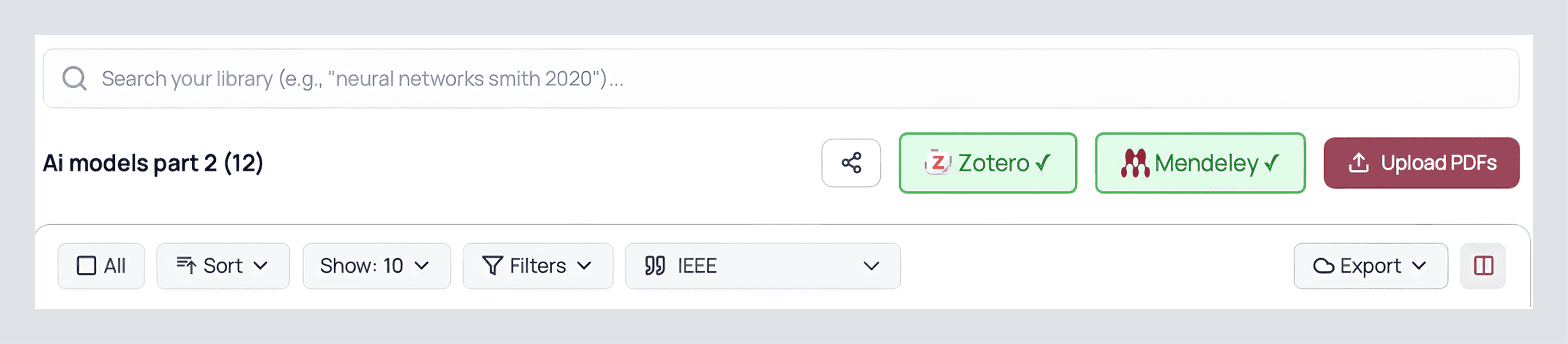
From your machine or reference manager: upload PDFs directly or connect Zotero/Mendeley and import.
Inside a library, work like a researcher, not an archivist. Click Manage Columns and extract the data you’ll keep having to answer for: Methods, Metrics, Gaps, Limitations, Inclusion/Exclusion criteria, Sample sizes, and any custom pull you want to standardize. For scanned or image-based documents, OCR to JSON can also turn recognized text into structured, machine-readable data for further processing. Those extractions persist inside the library, which means you do the careful reading once and then reuse the structured view across your draft, a grant, a talk, and the follow-up review you’ll run next month.
Filters here are the same muscle memory: date bounds for recency vs. foundations, journal quality (Q1/Q2 when rigor matters), keyword filters in title/abstract when you’re narrowing scope. Sort by citation count to spot anchors; sort by year to see waves. When the table shows something interesting, export the CSV (for an appendix or a lab wiki), or export BibTeX if you’re moving to LaTeX. If a collaborator wants to see everything you curated, share the library directly so they’re not piecing together screenshots and guesswork.
Two practical moves make libraries pay off elsewhere:
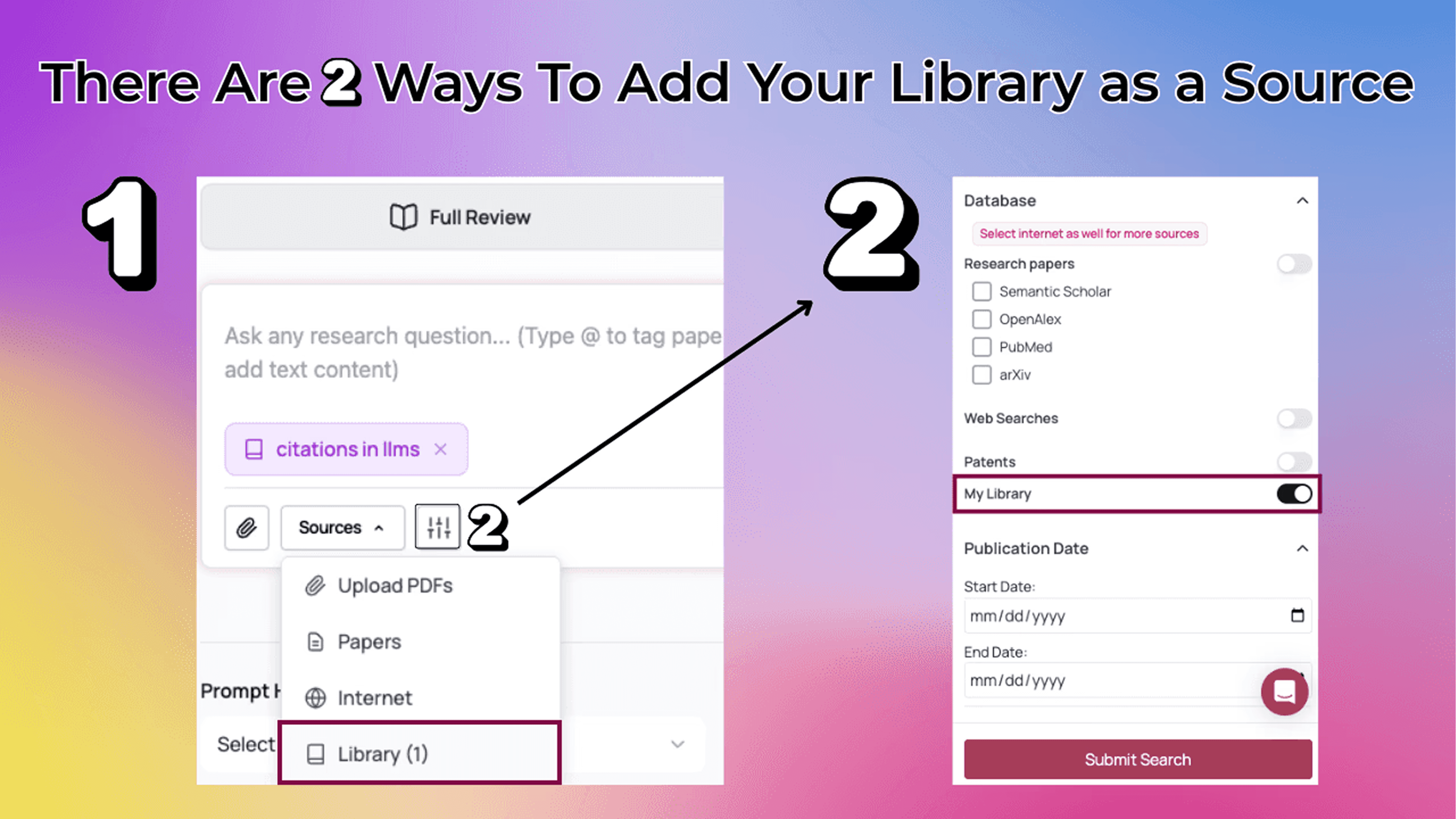
Use a Library as the source of truth in new syntheses. In Full Review and Follow-Up, open More filters and switch on your Library. Now AnswerThis will write using your library.
Cite straight from the Library while drafting. In Full Notebook, open the Library tab on the right, search by author/title/keyword, and click Cite. Because the Notebook remembers your style, in-text and reference entries are formatted and deduped automatically. If you’ve already extracted, say, Metrics and Methods in the Library, you can copy those rows into your Notebook as a table without re-typing anything.
If you want the same high-level read you enjoyed in Sources, you can also run Bibliometric Analysis from a Library selection: publications by year, citation trends, combined impact, keyword usage, and top authors on your set. This catches blind spots before a reviewer does.
When you’re collaborating, invite teammates to the library itself (not just the draft). Agree on which columns you’ll maintain so your exports line up without cleanup. That one decision eliminates 80% of the back-and-forth that burns time at submission.
Need to make your own AI to use data that you choose in order to complete manual research tasks quick? Click here and read how to make your own AI on AnswerThis.
Related resources
Explore Literature Review tools
Frequently Asked Questions
What is the AnswerThis Library used for?
The AnswerThis Library gives you a place to keep research papers, sources, and useful material organized so they can be found and reused in future work.
How can I organize papers in my research library?
Use clear names, group related sources by project or topic, and keep the materials you expect to revisit together with their notes and citation details.
Can I reuse saved papers across different projects?
Yes. A well-organized library makes it easier to return to relevant papers, compare sources, and build on earlier research without starting from scratch.
Why is it important to keep research papers organized?
Organization saves time, reduces duplicate searching, and makes it easier to trace claims back to the sources that support them.
What should I save with each paper?
Save the full source, citation details, a short note about why it matters, and any key findings or quotations you may need when writing later.


