

Detect AI and Plagiarism With Unparalleled Accuracy in 2 Clicks
Scan your literature review or academic writing with AnswerThis’s AI / Plagiarism Checker. AnswerThis helps reduce friction between finding evidence, understanding it, and turning it into a well-organized draft. The guide below makes the approach practical with clear decisions and useful examples.
TL;DR
This guide explains AI & Plagiarism Checker for Academic Writing.
Scan your literature review or academic writing with AnswerThis’s AI / Plagiarism Checker.
Within just 2 minutes, you’ll be able to identify the exact sentences in your writing that would get marked for AI or plagiarism.
Use the sections below for practical steps, examples, and next actions.
Step 1: Open AnswerThis and Go to the AI Writer
Once you’re inside AnswerThis, head over to the AI Writer tool. You’ll see a clean split screen:
Left side: Insert your own text
Right side: Generate new text using AnswerThis
This makes it easy whether you’re checking something you wrote yourself or something you just generated on the platform.
Step 2: Add the Text You Want to Verify
If you already have writing prepared, like an essay, thesis paragraph, literature review, etc. Just paste it into the left-hand side.
If you’re generating something from scratch, you can enter your prompt on the right-hand side. For example, I asked AnswerThis to write a literature review on culture shock when studying abroad. Once generated, you can instantly move it into the editor for verification.
Either way, you’ll have your text ready to analyze in seconds.
Step 3: Run a Plagiarism Check
Now head over to the Analysis section.
Click Plagiarism, then select Analyze Entire Document.
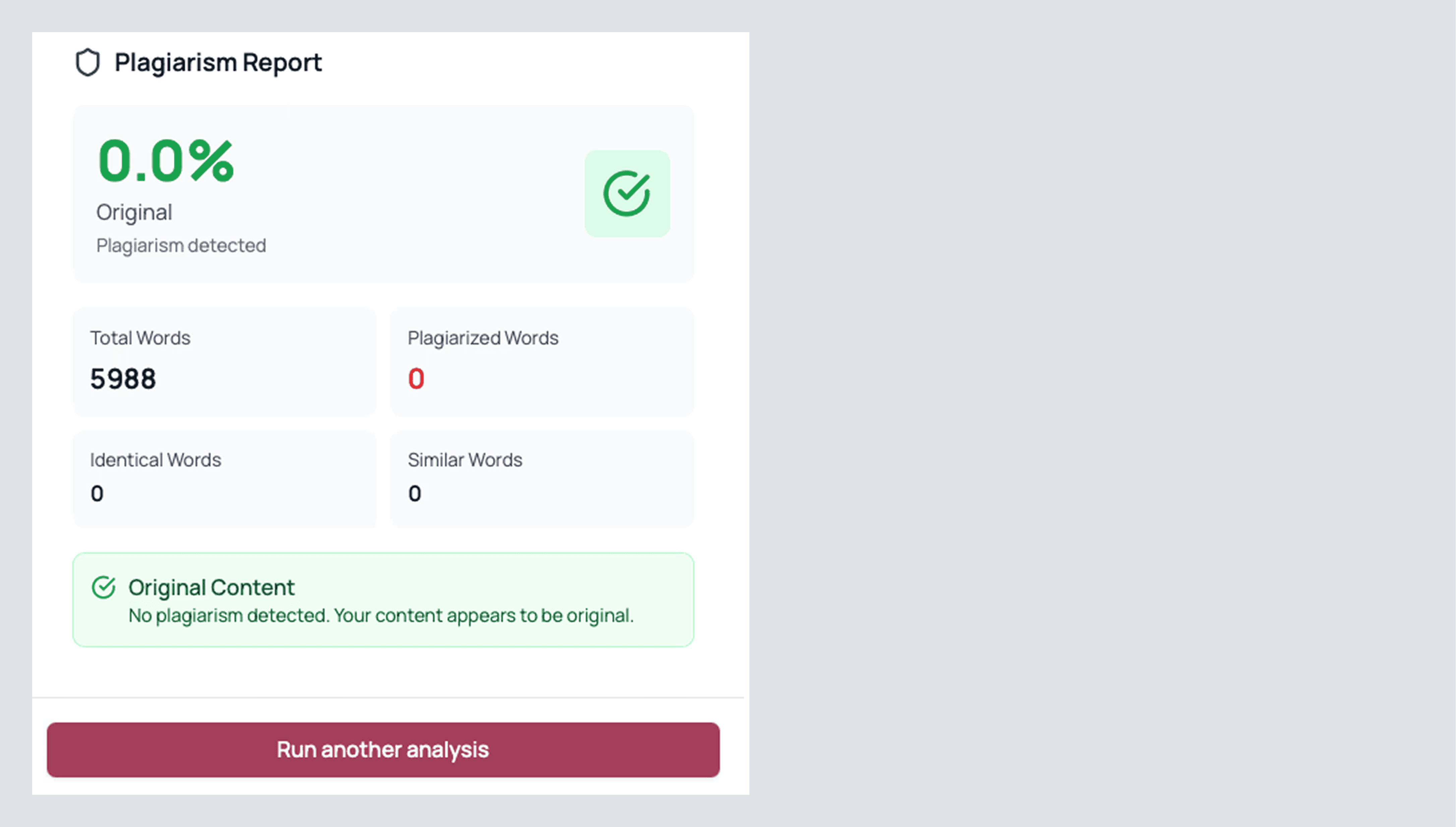
Within a moment, you’ll see:
Total percentage of detected plagiarism
Highlighted lines (if any are flagged)
A clean breakdown of what the system found
In my example, the document returned 0% detected plagiarism, making it safe to use as-is.
This feature is especially useful if you’re using mixed sources, rewriting content, or double-checking academic work.
Step 4: Run AI Detection on the Same Text
Right next to the plagiarism tab, click AI Detection.
Then choose Analyze Entire Document again.
AnswerThis will:
Estimate the likelihood your writing appears AI-generated
Highlight sentences that are fully or partially flagged
Show which parts you may want to edit or humanize
This is incredibly helpful if you’re submitting work to a professor, publisher, or platform that uses AI detection tools.
Step 5: Analyze Only a Specific Section (Optional)
Sometimes you don’t need to check the entire piece.
Maybe it’s just one paragraph you’re worried about.
In that case:
Select the exact text you want to analyze
Click Selection under either Plagiarism or AI Detection
Run the analysis only for that highlighted portion
AnswerThis will automatically detect the selected section and analyze only that text. This is perfect when you’re editing drafts or refining smaller chunks of writing.
Step 6: Explore the Custom Detection Options
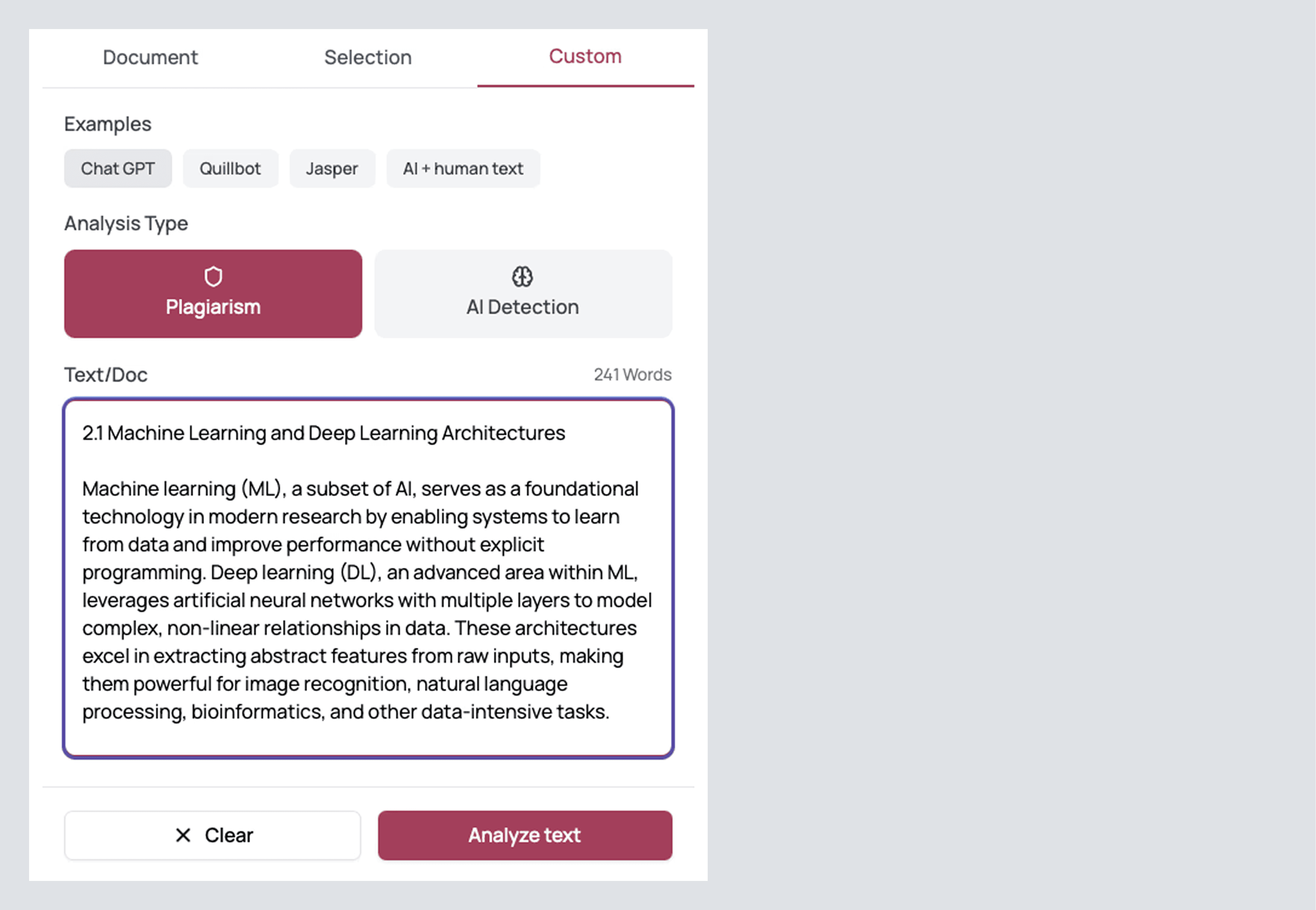
For deeper insights, click on the Custom section.
Here, AnswerThis lets you compare your writing against different text sources like:
GPT
Jasper
Copy.ai
AI + human mixed writing
You can paste your text directly into this section and run targeted detection to see how it matches different writing styles.
This is especially useful if you’re trying to avoid false positives from detectors that are overly sensitive to AI like phrasing.
Final Thoughts
AnswerThis makes it incredibly simple to verify your writing for both plagiarism and AI detection, all inside one streamlined workspace. Whether you’re a student, researcher, or content creator, these tools give you peace of mind and help you submit work with confidence.
I hope you found this helpful, and as always, good luck researching.
If you want me to turn this into a downloadable guide, video script, or extended tutorial, just let me know!
Related resources
Frequently Asked Questions
What is the difference between plagiarism detection and AI detection?
Plagiarism detection looks for overlap between a text and existing sources. AI detection estimates whether writing may share patterns associated with generated text. Neither result alone proves misconduct or determines authorship.
Can an AI or plagiarism checker be completely accurate?
No checker is definitive in every case. Results can flag text for further review, but they should be interpreted alongside source records, writing history, assignment context, and institutional policies.
What should I do if a plagiarism checker finds a match?
Open the matched source and review the passage in context. Add or correct a citation, rewrite overly close wording in your own voice, or leave necessary quoted material clearly marked and referenced.
How can I avoid accidental plagiarism in academic writing?
Keep clear notes on every source, distinguish direct quotations from your own analysis, cite paraphrased ideas, and check the final draft before submission. Paraphrasing changes wording but does not remove the need to cite the original author.
How can AnswerThis support original academic writing?
AnswerThis can help you organise sources, compare evidence, create an outline, and refine an early draft while keeping research materials close to the writing process. Verify sources and make final citation, disclosure, and authorship decisions yourself.


