Flawless Paper Search and citation backed literature reviews made in seconds

Ryan McCarroll
2 min read
The Best Paper Finder and lLiterature Review Tool. Let The Research Assistant Guide You…
As soon as you sign back into AnswerThis, you’ll see two options: Quick Q&A and Full Review.
Watch this quick video to see an in-depth guide on how to make the most out of AnswerThis:
Use the Full Review when you want a fully cited, comprehensive answer such as a literature review or essay.
Quick Q&A is for research questions like finding research gaps and inclusion criteria where you want a fast, citation backed answer. Any research question or query will be answered with unparalleled accuracy.
Use the prompt helper to curate a question that will get you exactly what you want (you can also explore some of AnswerThis’s capabilities here, too!) Or type a clear prompt to get exactly what you need.
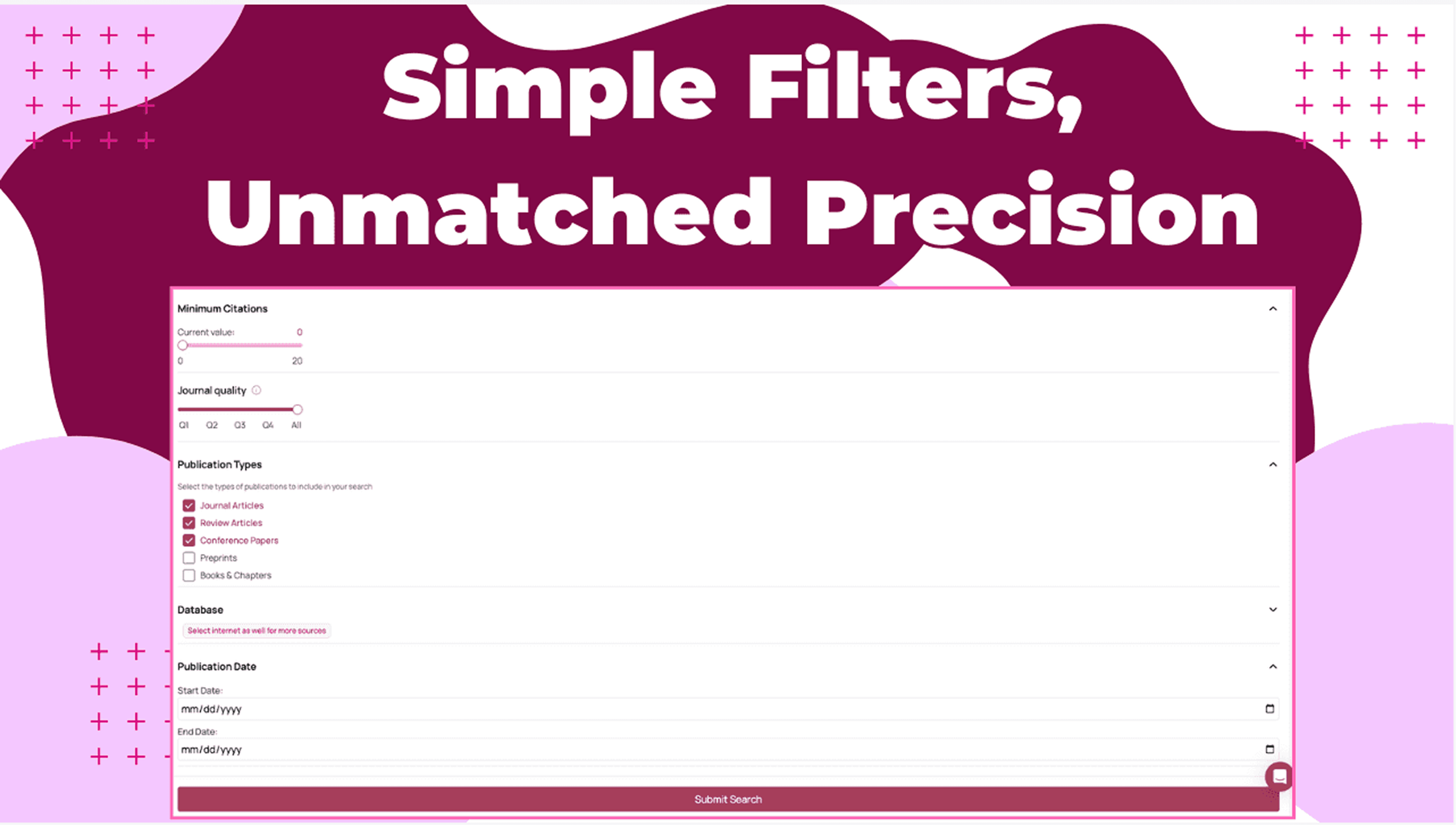
Before you run it, open More Filters. Pick the databases that match your field (Semantic Scholar and OpenAlex are good defaults; add PubMed for clinical work, arXiv for preprints). If rigor matters, set journal quality to Q1/Q2. If the topic is moving quickly, bound the date window to recent years. You can raise the minimum citations when you want maturity and lower it when you’re exploring new ground. The web toggle lets you include daily updated sources and even patents. Additionally, if you selected Full Review as your model, you can select the number of topics and subtopics you want in your literature, as well as tell AnswerThis what you would like the topics to be.
After have loaded you have sent your request, you'll soon be met with an answer that goes beyond your expectations…
Exploring Your Comprehensive Result
There's nothing like exploring AnswerThis's result for the first time. Well, it's time to get that feeling again. On the top of the review, you'll notice you can change the citation style (to over 6,000 different styles), as well as this ominous button, Notebook. This is our new AI editor, integrated right into your answer, but for now, let's explore the new literature review, unless you'd like to learn how to use it now by clicking here.
Skim or read through the result that AnswerThis gave, and feel free to click on any citations next to text that intrigues you or is relevant for your research. This will bring you right down to the sources section, where you can uncover an abundance of information at a button.
Throughout our paper, we may come across tables as well, which can also be exported to the notebook as you can see in the image below.
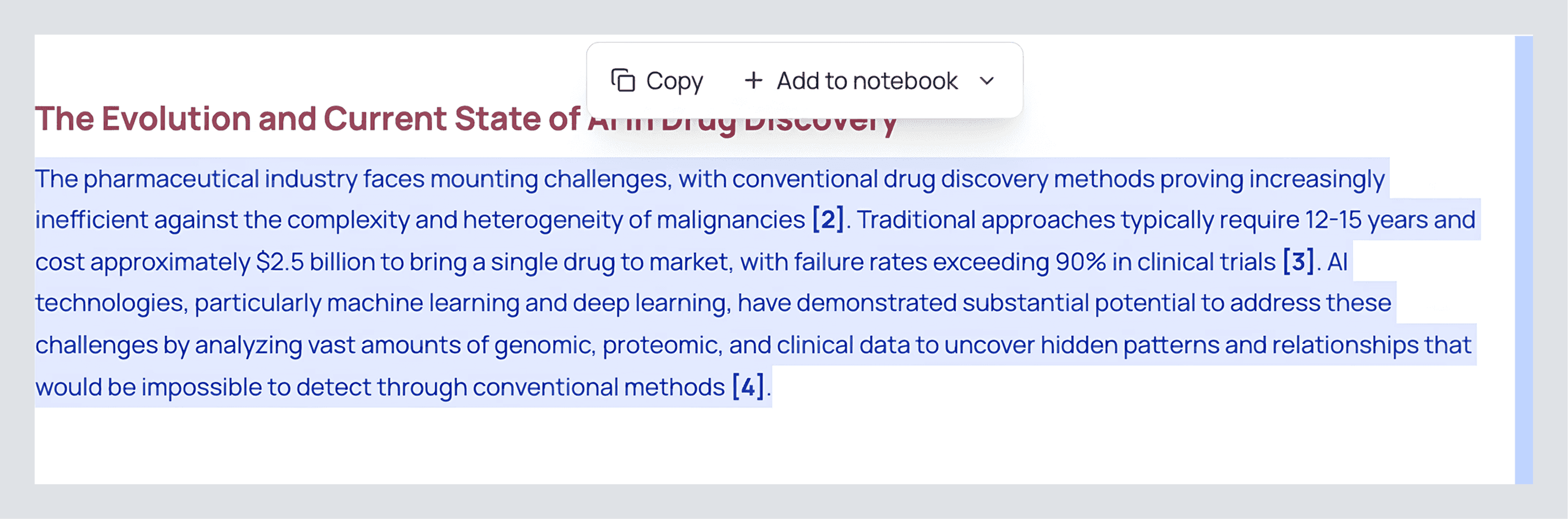
Assistant Tip: As you read through your result, highlight parts that you would use in your own writing and important information to add to your notebook, as you can see in the image below. This will allow you to revisit all the valuable parts easily later.
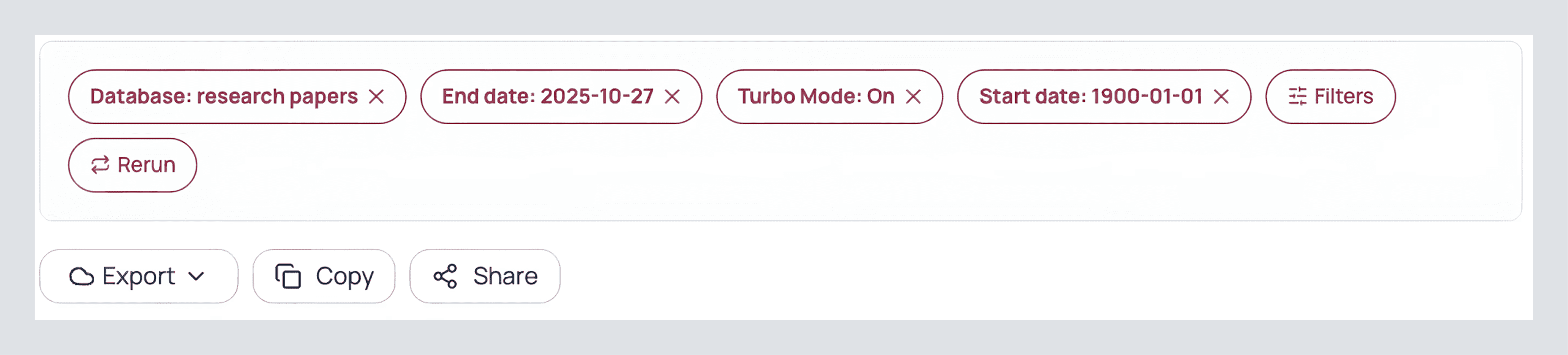
Once you've finished reading, you'll find a variety of buttons at the end of your review. Here's what they do:
Export - Hover over this option to export your answer into DOCX, PDF, Markdown, and LaTeX formats.
Share - If you want to collaborate with peers for a team project or have a professor to look at it. Click share and enter their email to share privately, or if you'd like to show your result to the world, you can press public and share.
See these options below.
You may have missed it, but on the top right, there are a few extra buttons you might have missed, such as these:
1. Invite Members: Similarly to the share feature, you can invite someone to your workspace. This means that they don't just see your result, but everything else that you have done inside of the canvas, which will eventually contain citation map, chatpdfs, and a fully complete workflow, but we're not quite there yet!
2. Recent Search: Here you can access all your recent queries and workflows. In the future, this will make navigation easy.
3. LibKey (The Oxford's hat): Here you can access papers that belong to certain libraries.
4. Profile logo: As you'd expect, it opens a menu where you can access your profile's settings as well as team settings
See these options below

Now that you've dug into and experienced the writing capabilities of AnswerThis, let's dive into the paper's precise citations that we received and how we can make the most out of them.
Make The Most Out of Your Research Papers
When you click a citation inside your literature review, you jump straight to the Sources section. Think of this as your evidence workspace. We can use these pieces of evidence and use them in some of AnswerThis's workflows to see the research puzzle come together.
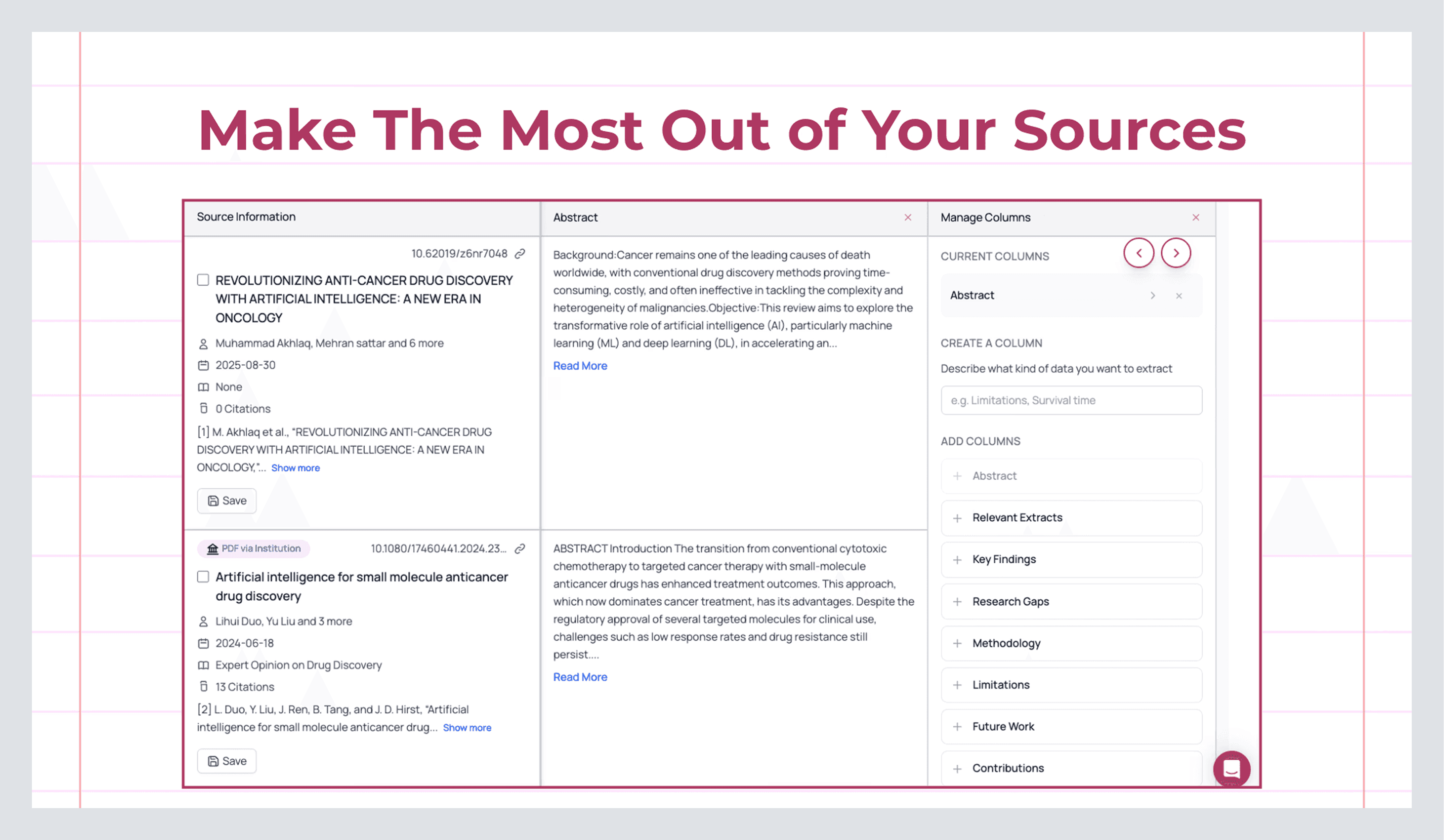
What you’re looking at
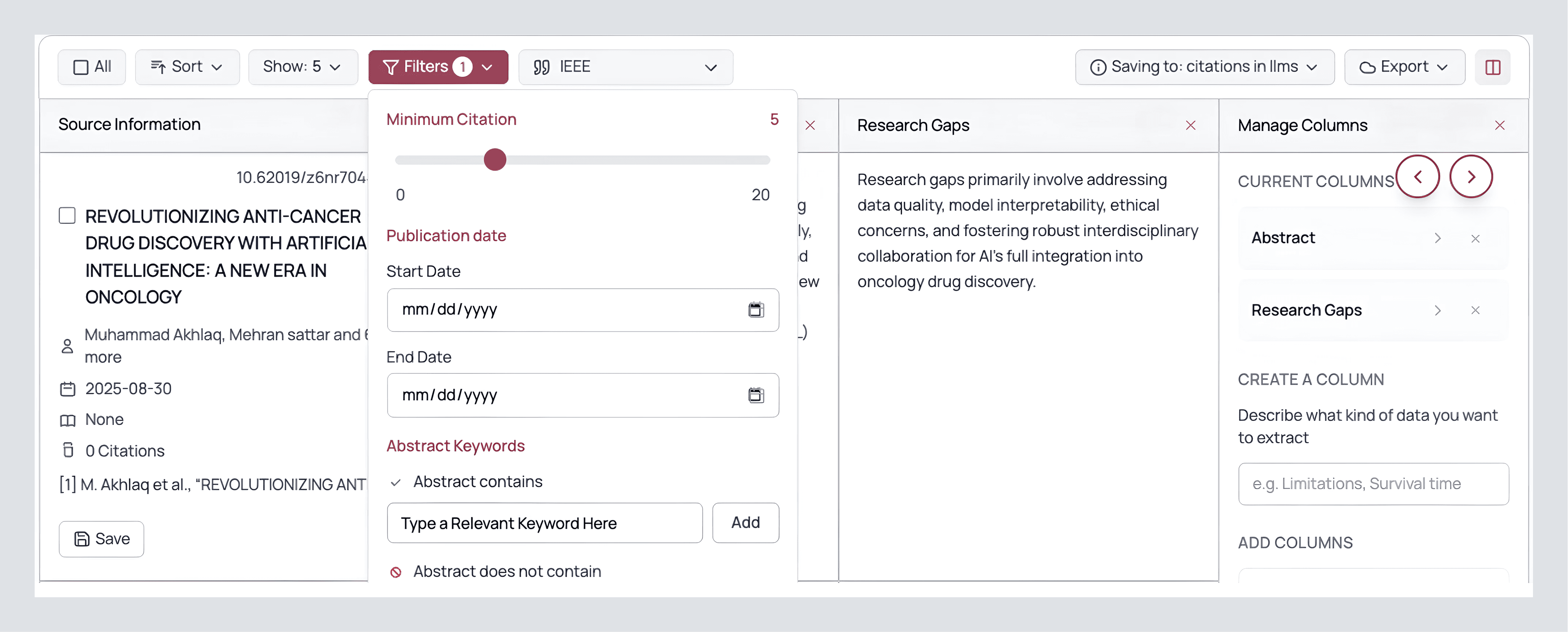
On the left, each row is a paper with author(s), year, venue/journal quality (Q1–Q4, where available), DOI, and citation counts. The center column provides the abstract, already highlighted against your query, so your eyes are drawn to the relevant text first. The right column contains a custom columns section where you can automatically add data like extracts. These are short, contextual snippets AnswerThis pulled because they directly connect to what you asked...
Shape the table to your questions
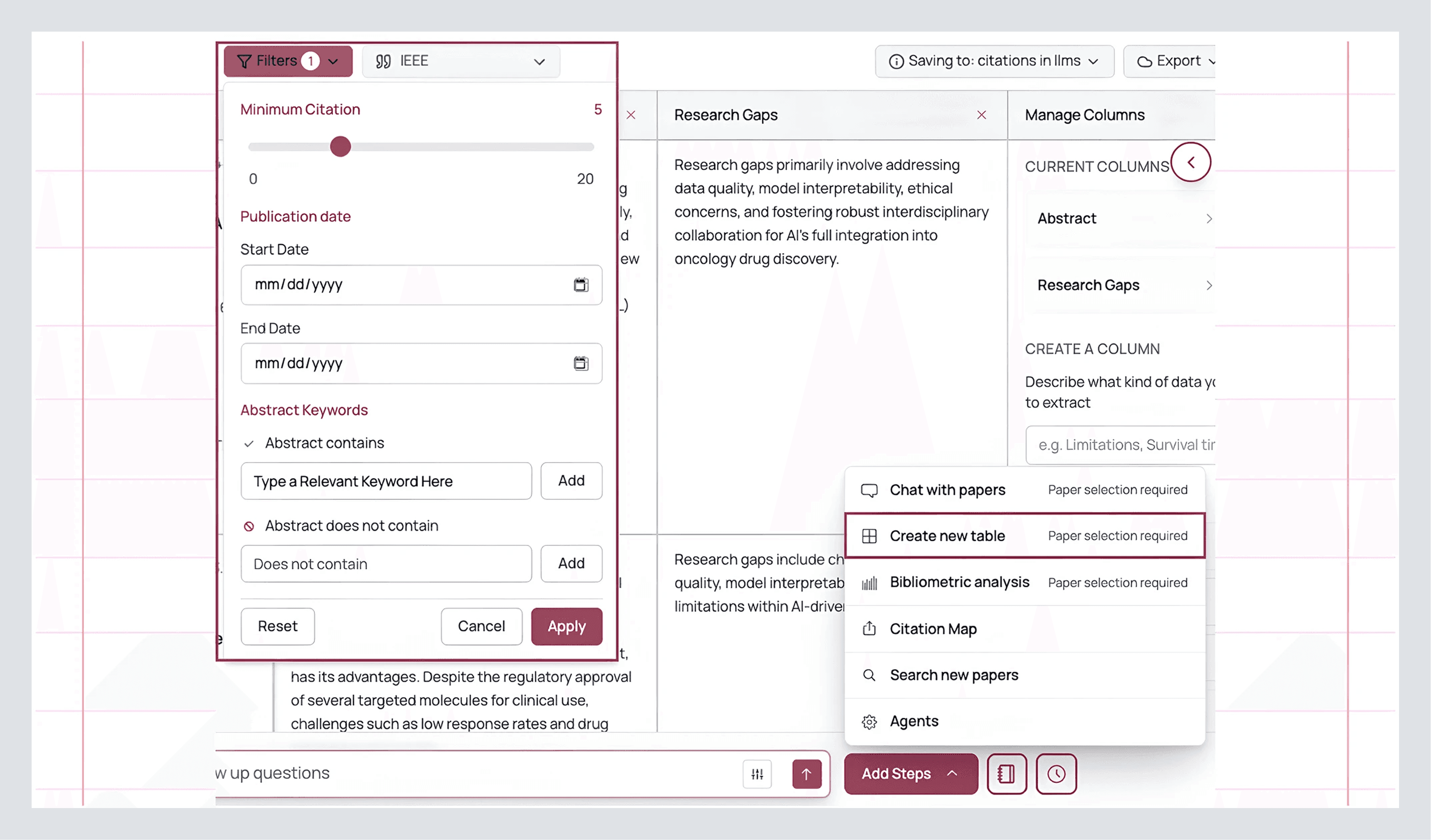
Click Manage Columns. This is where AnswerThis becomes a professional researcher who can read 1,000s of papers at once. You can extract data from papers such as:
Research Gaps adds a concise “what’s missing” note per paper. This is gold when you’re framing a contribution or writing “Future Work.”
Key Findings compresses the main result into one actionable line, handy for a quick scan and for tables in appendices.
Methodology surfaces designs, datasets, architectures, or analysis approaches.
Custom Extract is where you can prompt the column to extract anything you want! Ask for Evaluation metrics, Sample sizes, Inclusion criteria, Effect sizes, Benchmarks, or Risk of bias, whatever your reviewer (or supervisor) will ask you for later.
Once added, you can sort and filter on these columns like any spreadsheet. For example, filter to Q1 journals published from 2020 onwards (we can also filter by keywords if we wish). In seconds, you have a shortlist that actually matches your bar.
Assistant Tip: If a paper looks promising, don’t leave it to read it later. Use the table to decide why it’s promising, and extract that value right now.
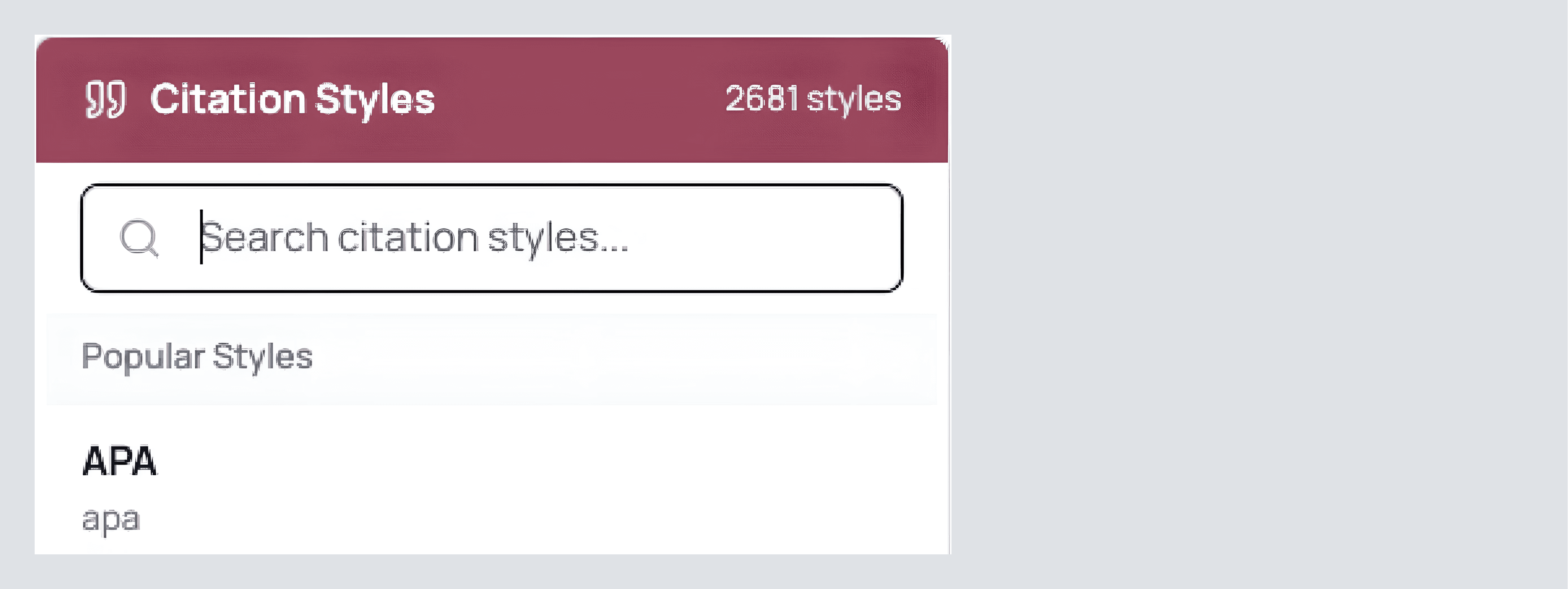
Switch styles, keep consistency
At the top, set your citation style, APA/MLA/Chicago, or one of thousands of others. The review and the sources table update together. Lock this now so you don’t reformat late in the process.
Export cleanly
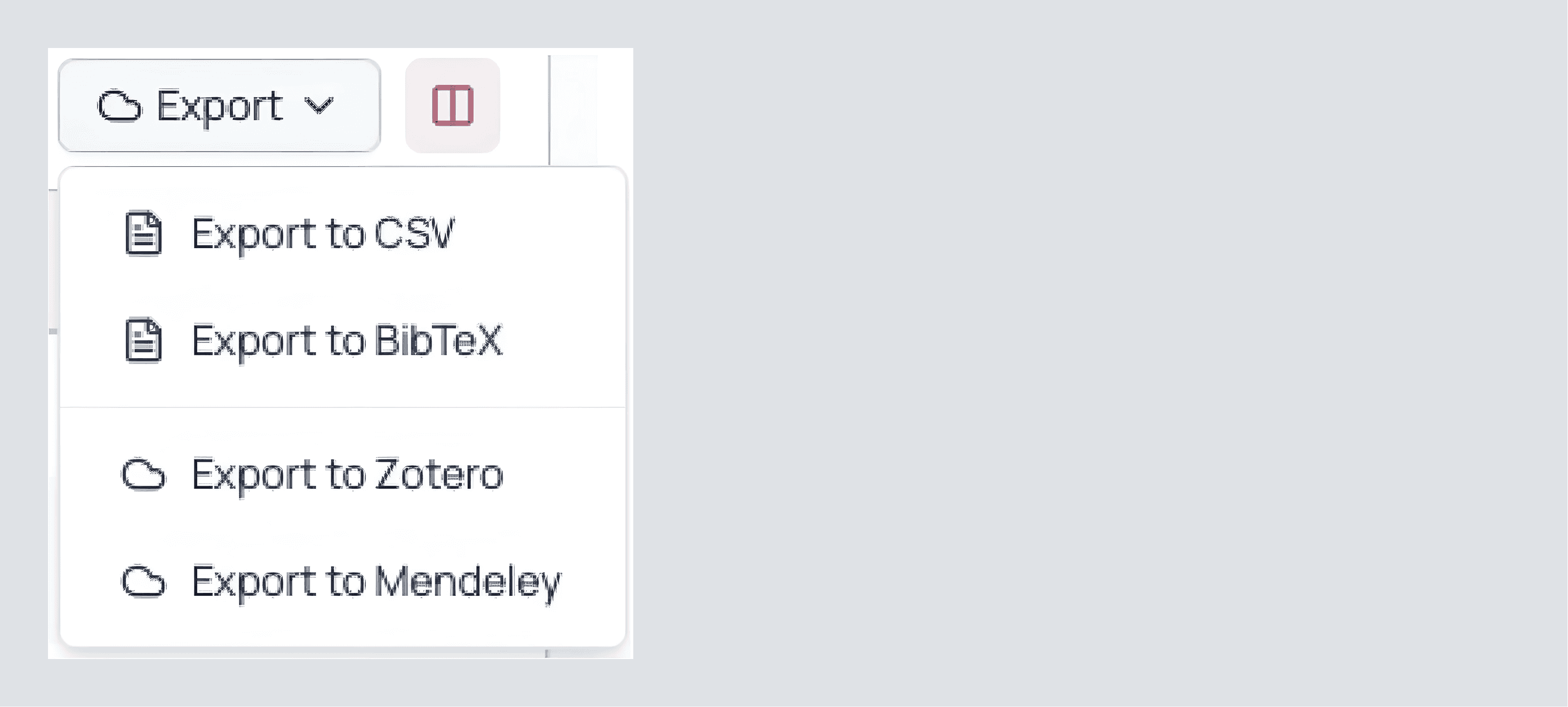
In the top right corner, we also see an export button. Click this to export to the following formats and libraries:
CSV if you want to analyze trends or share a structured view with teammates.
BibTeX if you’re in LaTeX (or send to Zotero/Mendeley directly).
Zotero
Mendeley
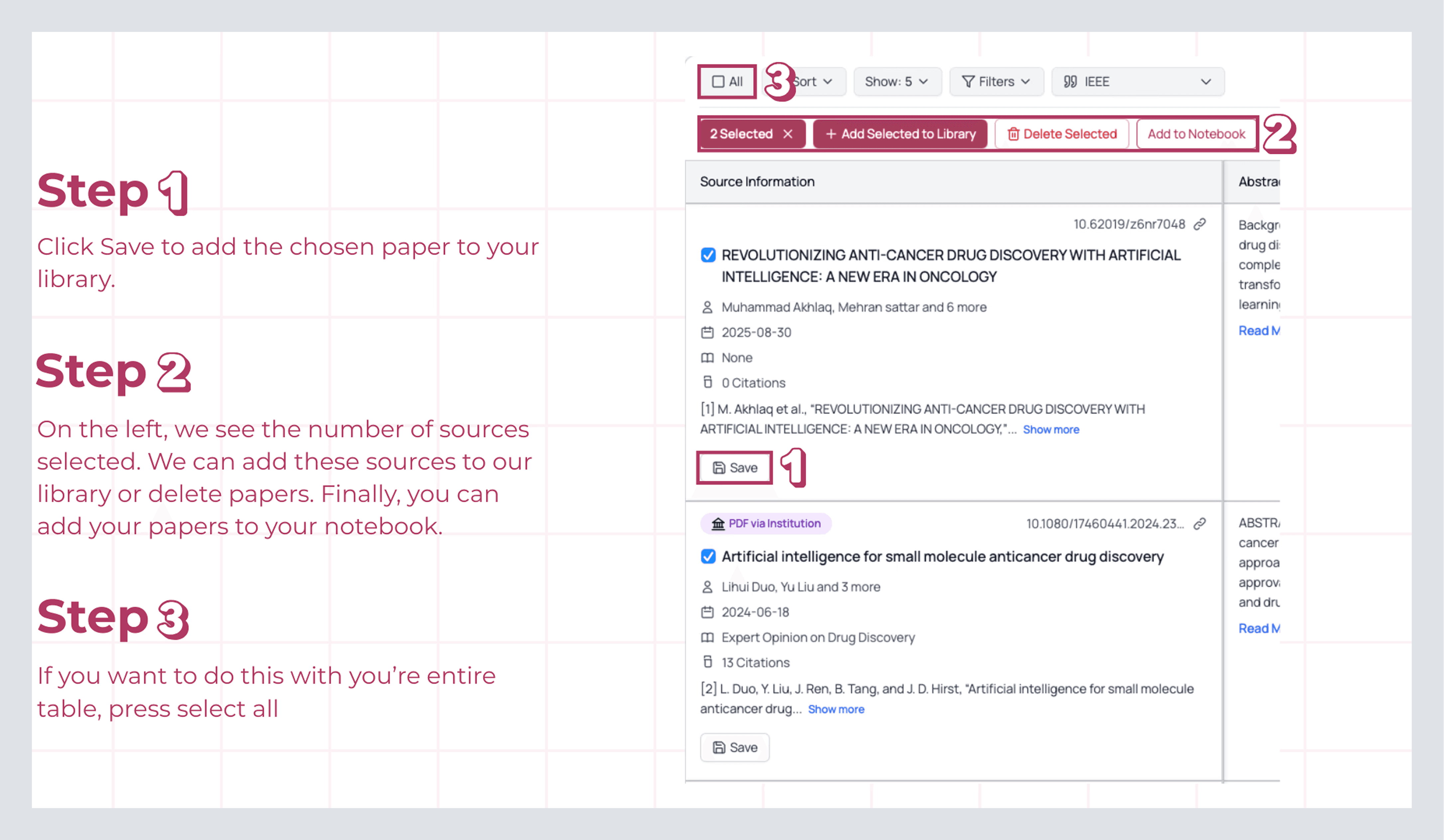
As you go through your research papers, you’ll notice a Save button on the left-hand side. Select multiple papers at once, or one at a time, and add them directly to your library for future research endeavors.
But wait, when you try to select a new paper, four more options appear, you may say. Great observation! Here, we can see the count of selected papers, the option to add them to the library, delete a paper, or add it to our notebook (a place where you can keep key notes as you work on your canvas, skip here to read more).
If we want to take it one step further, we can select all papers at once using the checkbox in the top left corner. Whether we select all or just a few, we’ll still see the four options mentioned earlier, plus the Next Step button, which lets us view more information about the sources and connect them together.
If you’ve fine-tuned your filters (e.g., Q1/Q2, 2024+, keyword match) or hand-picked a subset of papers, press Create New Table. This creates a clean table you can work from without altering the larger list. Give it a clear name so you can find it later.
Now that we have a new table with similar traits, we can use it later to extract deeper insights, from identifying emerging trends to discovering microcosms of the bigger picture. You never know what you might uncover.